

If you’ve ever onboarded a new data engineer onto an Airflow project, you know the drill. Half a day disappears into Python version mismatches, missing system dependencies, conflicting virtual environments, and the classic “it works on my machine” shrug. Local Airflow development is painful — and it doesn’t have to be.
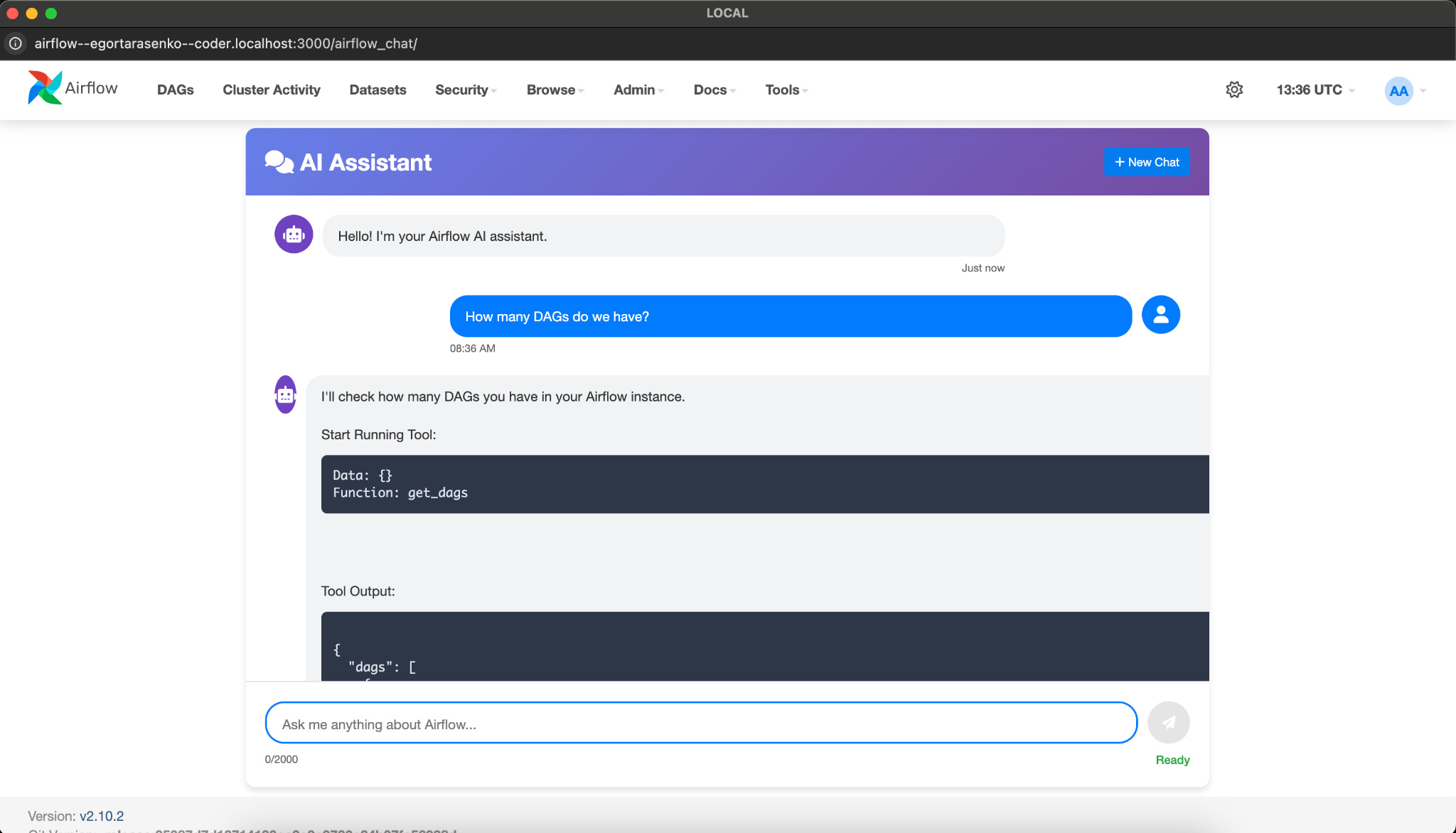
This post walks through how we use Coder to give every developer a fully isolated, reproducible Airflow environment that spins up in minutes. We’ll use the airflow-mcp-plugins repo as our example — a project that adds a conversational AI interface directly into the Airflow UI – https://newsletter.ponder.co/p/airflow-chat-conversational-ai-built .
The Problem with Local Airflow
Just yesterday I ran into someone who told me they’d been a Dagster advocate for years — not because of the technology itself, but because local development just felt easier there. Airflow had a reputation for being painful to run locally, and that reputation stuck even as Airflow improved significantly over time. I love Airflow, and it bothered me that something as fixable as local dev experience was pushing people toward other tools. This post is partly my answer to that.
Running Airflow locally sounds simple until it isn’t. The typical setup involves Docker Compose with multiple services — webserver, scheduler, worker, Redis, Postgres — all needing to talk to each other, share volumes, and pick up your DAG files. On top of that:
Everyone needs the same Python version and the same packages
Port conflicts are common if you’re running multiple projects
When you stop and restart, state can get corrupted
New team members spend hours just getting to a working baseline
The usual answer is “just use Docker Compose directly.” But that still leaves every developer managing their own environment, their own .env files, their own credentials, and their own debugging when something breaks.
And then there’s the invisible problem: standardization drift. If you figure out a better way to set up the local environment — a smarter Docker Compose config, a new environment variable that everyone needs, a helper script that saves thirty minutes — how do you roll that out? You send an email. Which probably won’t be read. Or will be read, bookmarked, and forgotten. Six months later you discover half the team is still running the old setup because there was never a centralized, enforced way to define what “local development” actually means.
This challenge becomes even more apparent when supporting a broader internal development team. At Uncommon Schools, we work with engineers and developers across the data stack — from Airflow pipelines to dbt transformations and analytics tooling — with different roles, workflows, and levels of infrastructure familiarity. Before introducing Coder-driven workspaces, keeping everyone’s local setup aligned with the latest infrastructure changes was a recurring challenge.
The goal was to move away from onboarding docs, Slack messages, and tribal knowledge toward a development environment that is itself the source of truth: a reproducible workspace definition that every developer can spin up and keep in sync.
It gets worse when your stack grows beyond a simple Docker Compose. What if some components need to run directly on the laptop — a local Python process, a dbt command, a custom script that talks to both your local Airflow and a cloud service? Now you’re coordinating Docker networks, local processes, environment variables, and credentials across multiple tools, and the “just run this command” onboarding doc is already three pages long and six months out of date.
The Solution: Coder
Coder is an open-source platform for self-hosted remote development environments. Think of it as a control plane for developer workspaces — similar in spirit to Dev Containers, but more flexible. Where Dev Containers are tied to a specific editor and a specific container, Coder lets you define full environments that can run not just containers but also VMs or even bare-metal OS instances. You get a browser-based IDE, a terminal, and proxied access to any app running inside the workspace, all through a single URL.
You define a workspace as code using Terraform, and Coder provisions it on demand — locally or in the cloud. The key insight is that a “workspace” is just a compute resource (a Docker container, a VM, a Kubernetes pod) with a Coder agent running inside it. The agent connects back to the Coder server, which proxies your IDE, your apps, and your terminal outward. Every developer gets their own isolated environment, defined by the same Terraform template, with their own credentials injected at workspace creation time.
Coder supports a wide range of workspace types — AWS EC2 instances, Google Cloud VMs, Kubernetes pods, and more. For this tutorial we’ll use Docker, which is the simplest setup for local development and needs nothing beyond Docker Desktop on your Mac.
For Airflow development this is a perfect fit. Each workspace gets its own Docker daemon (Docker-in-Docker), its own Postgres, its own Redis, and its own Airflow stack — all isolated inside a single container that Coder manages. Want to change the default environment for the whole team? Update the Terraform template. Everyone’s next workspace picks it up automatically — no email required.
Running Coder Locally on Mac
First, install Coder:
curl -L https://coder.com/install.sh | shThen start the server. You need to pass both an access URL and a wildcard access URL — the wildcard is what allows Coder to proxy your Airflow UI through a subdomain:
coder server --access-url http://localhost:3000 --wildcard-access-url “*.localhost:3000”If you’re using our repository, we’ve wrapped this in a just command:
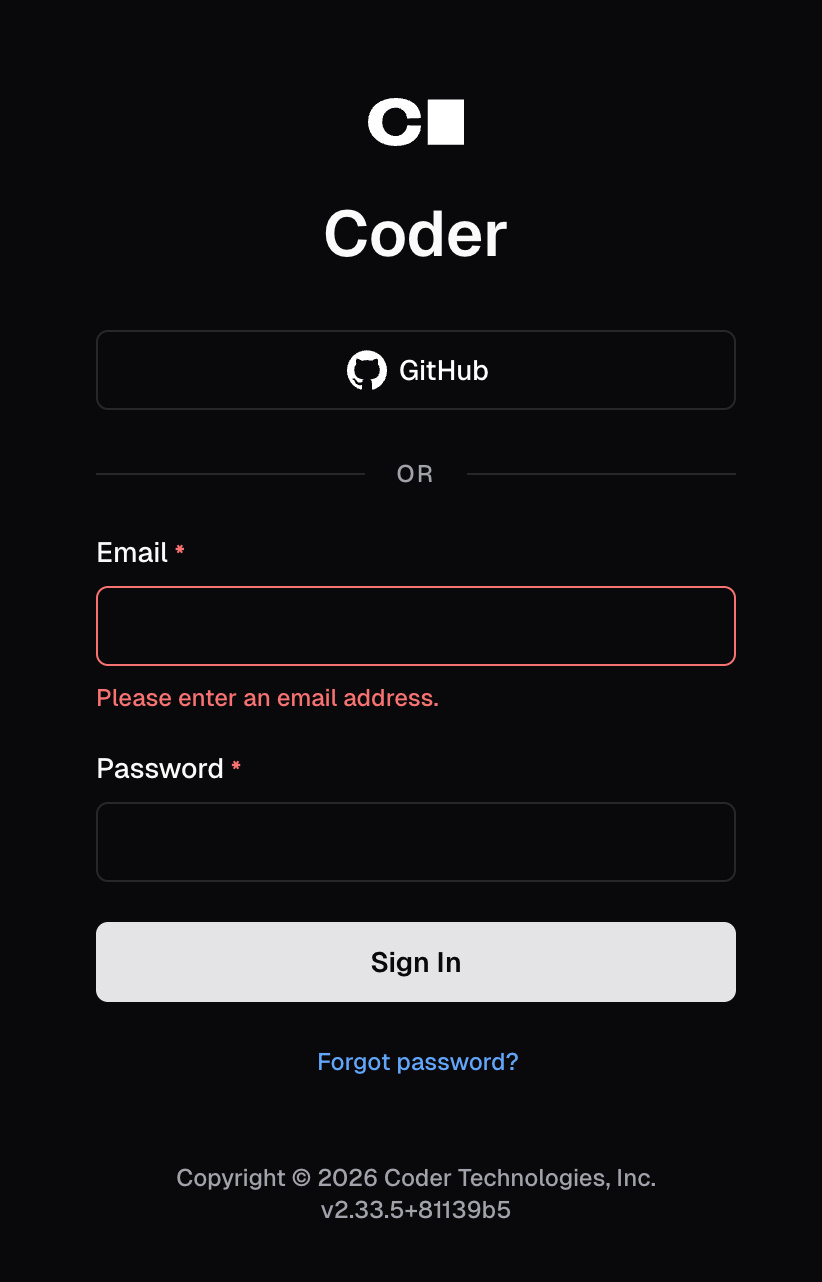
just start_coderOnce it starts, open http://localhost:3000 in your browser. You’ll be prompted to create an admin account on the first run.
Creating Your First Workspace
After logging in:
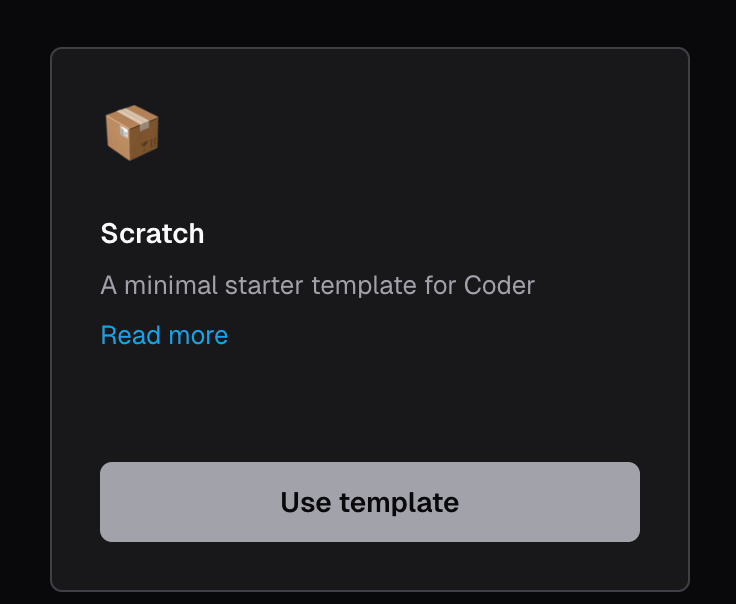
Go to Templates and create a new template — paste in the coder_template.tf from the repository, then click on Build and Publish

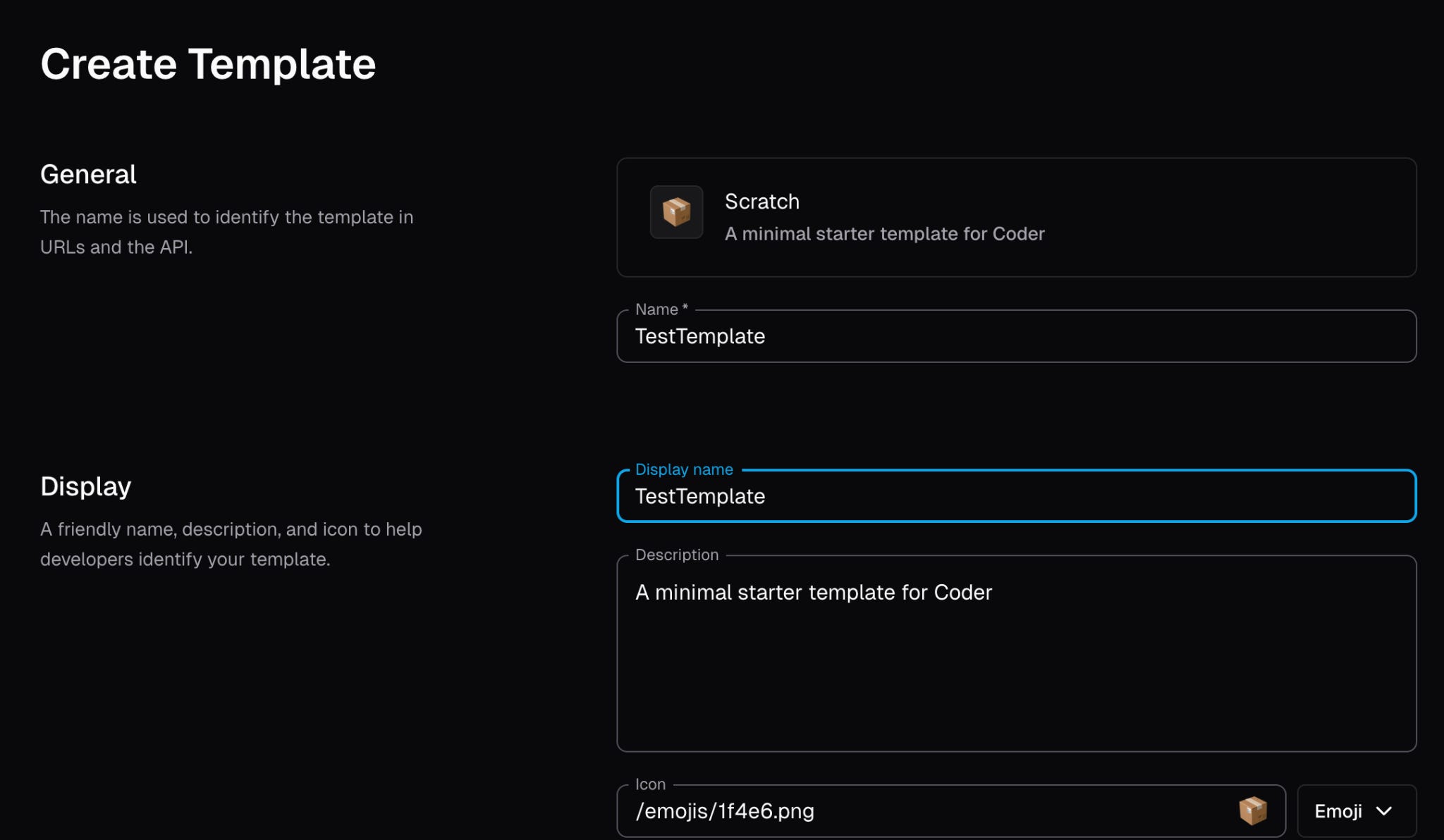
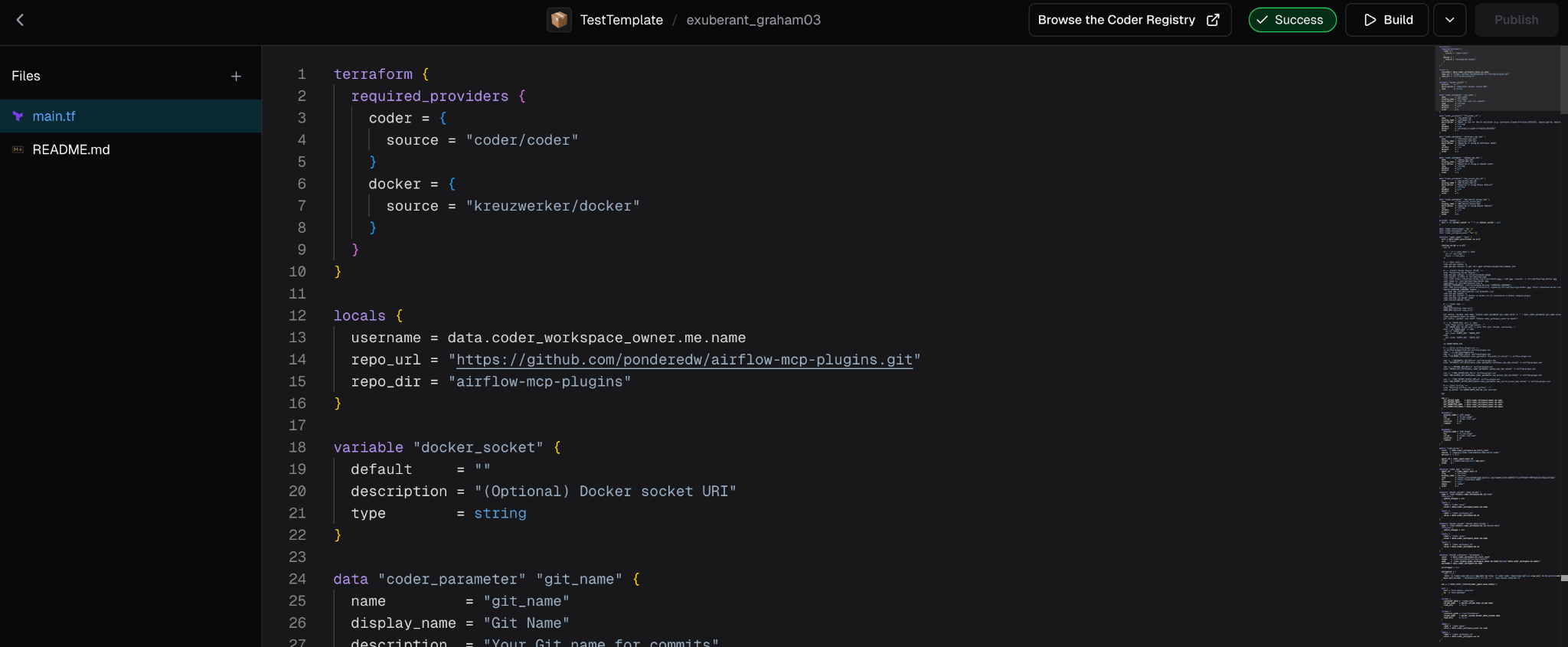
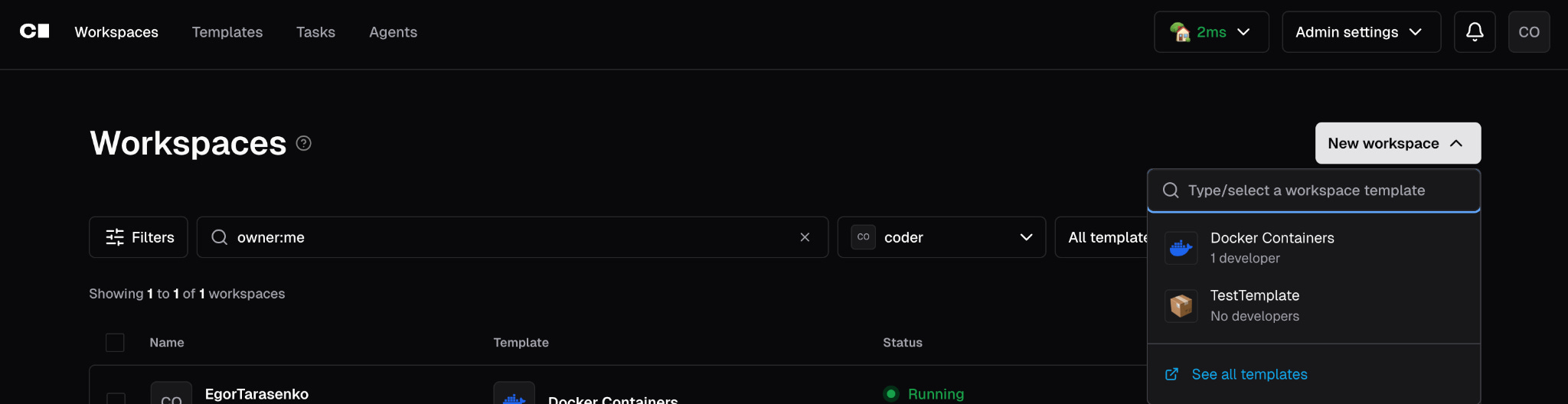
Click Create Workspace
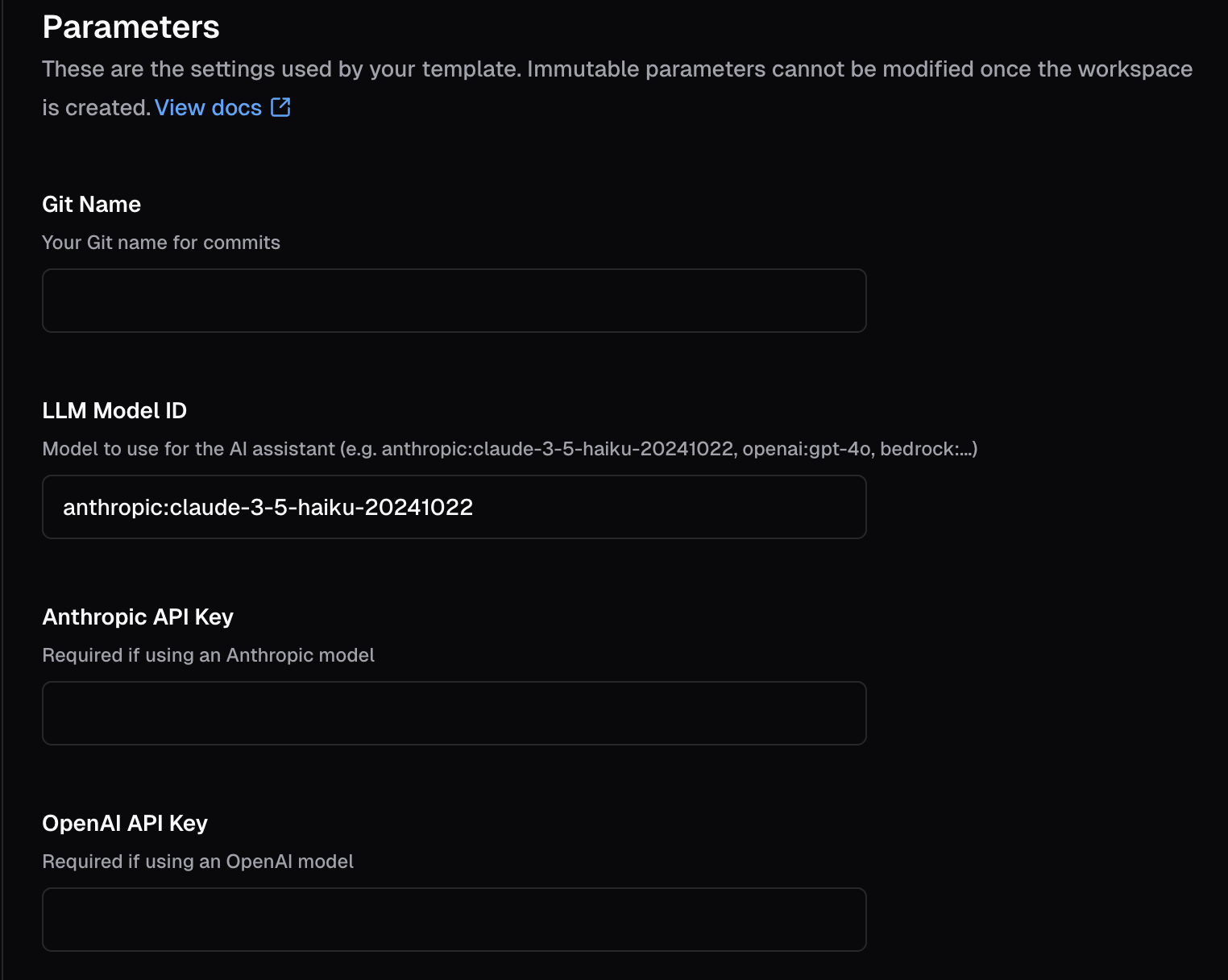
Fill in the parameters — your Git name, your Anthropic/OpenAI/AWS API key depending on which LLM backend you want to use
Hit Create and watch the build logs
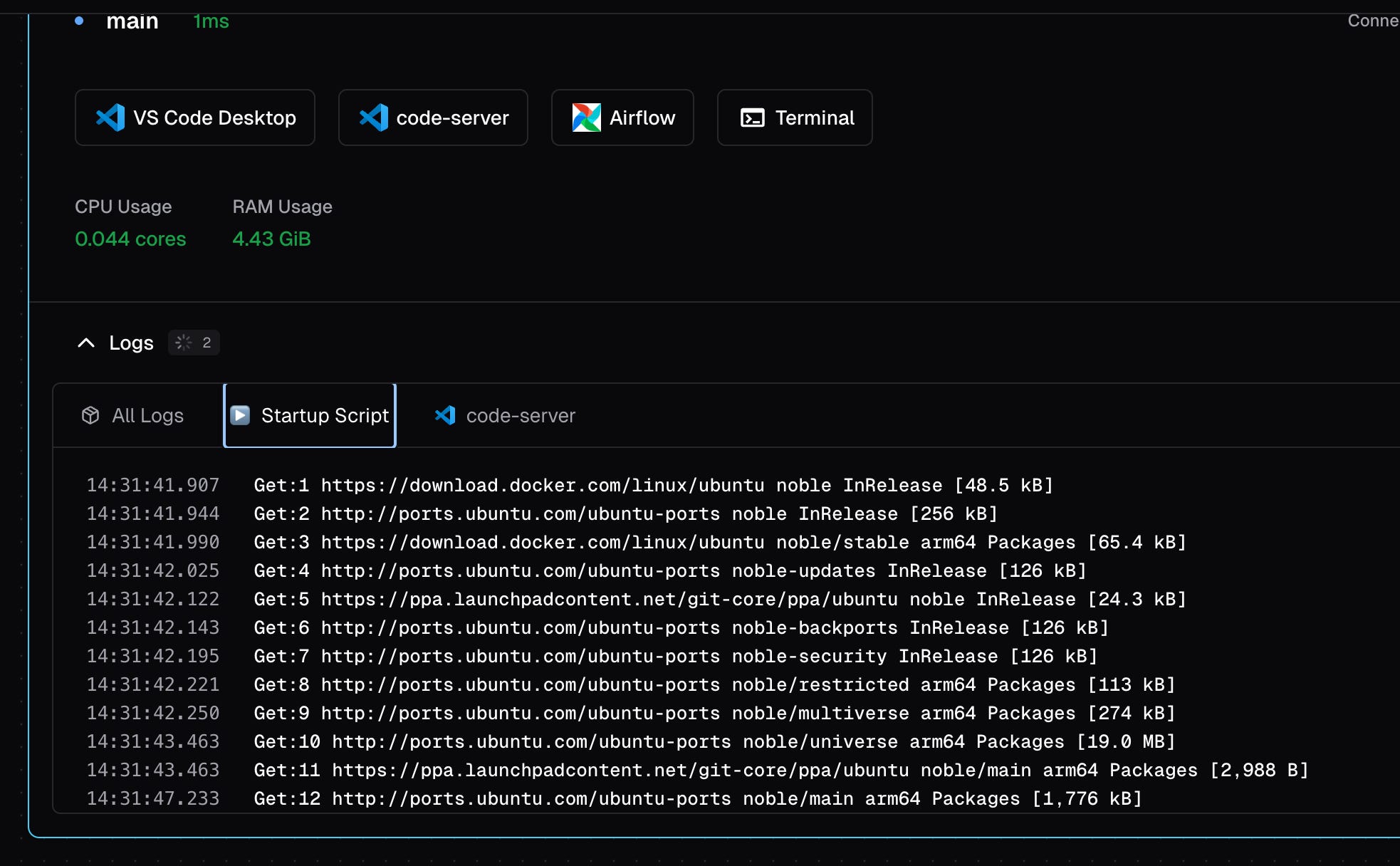
The first time takes a few minutes because Docker images need to be pulled. On subsequent starts it’s fast — the Docker image cache is persisted in a named volume so nothing gets re-downloaded.
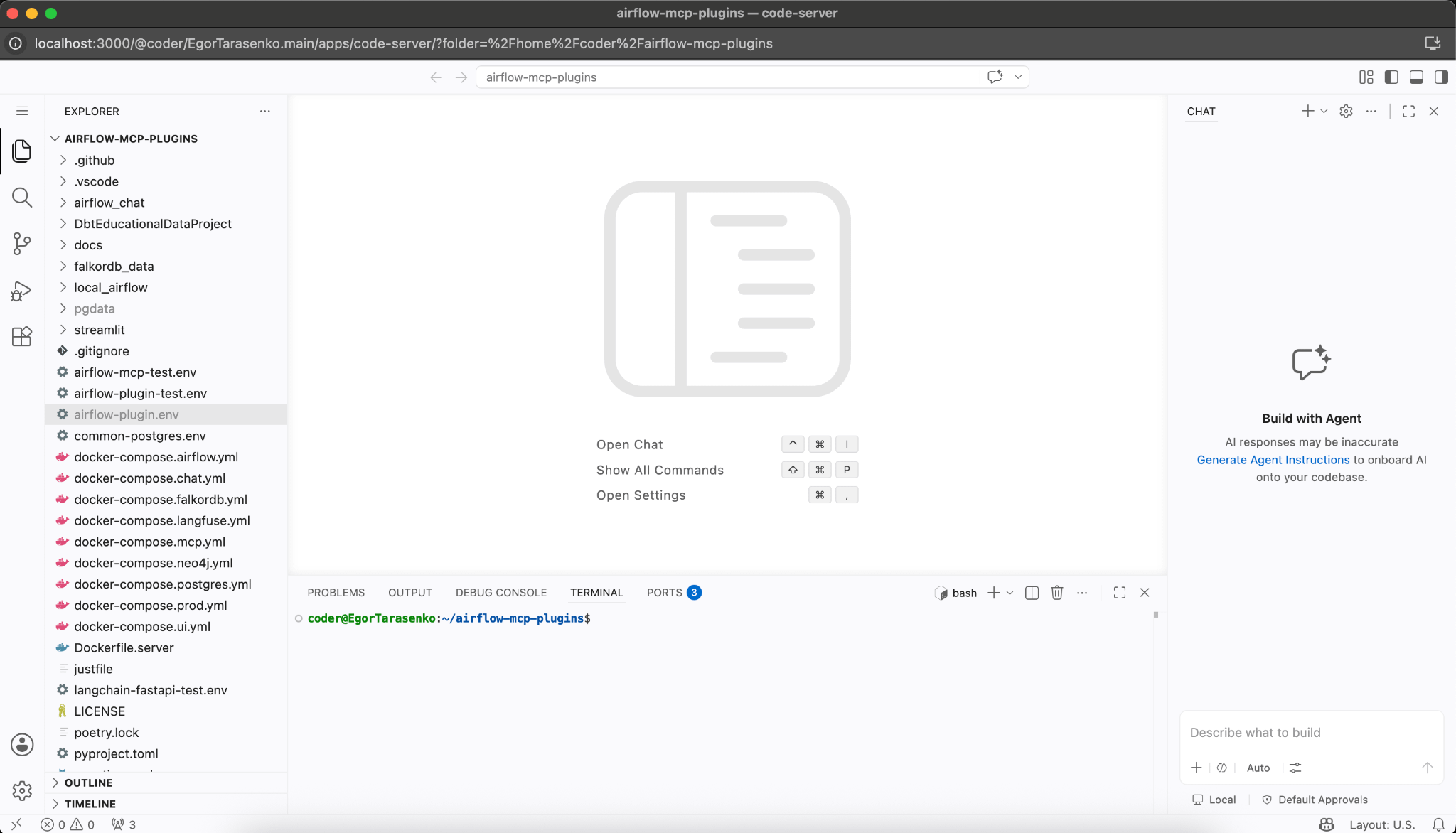
Once the workspace is running you’ll see two buttons: code-server (VS Code in the browser) and Airflow.
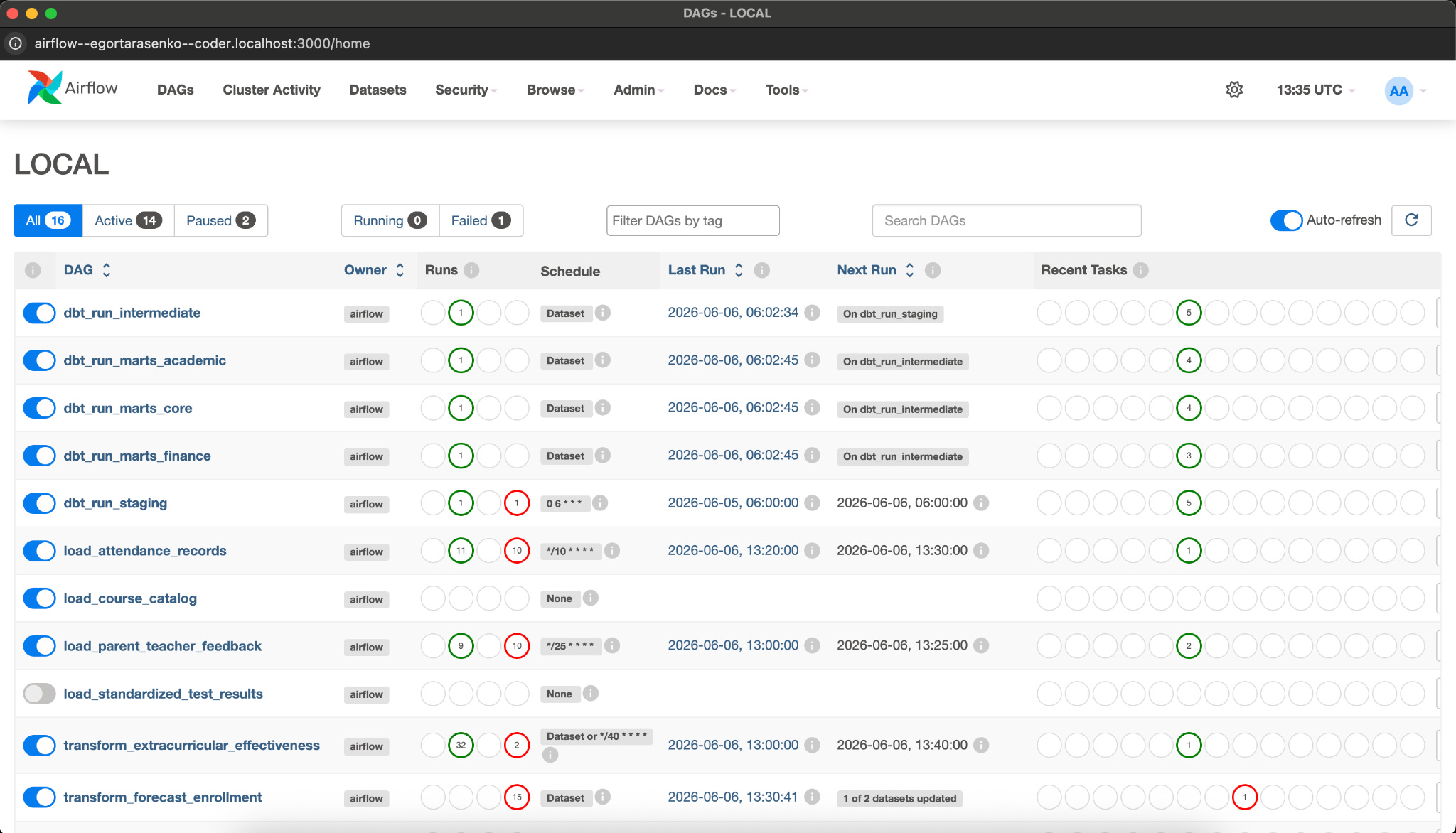
Click Airflow and you’ll land directly on the Airflow UI at http://airflow--yourusername--coder.localhost:3000/. Log in with airflow / airflow.
How Terraform Works in Coder
Every Coder workspace is defined by a Terraform template. When you create a workspace, Coder runs terraform apply with your parameters, which provisions the Docker container, volumes, and agent. When you stop the workspace, it runs terraform destroy on the container (but keeps the volumes). When you restart, it re-applies — same volumes, same data, new container.
The template we use here does a few things:
Declares input parameters (coder_parameter) that become form fields in the UI — your API keys, your Git name, your LLM model choice
Creates Docker volumes for /home/coder (your code and env files) and /var/lib/docker (the inner Docker image cache)
Spins up a privileged workspace container with its own Docker daemon inside (DinD)
Runs a startup script that installs Docker Engine, clones the repo, writes airflow-plugin.env from your parameters, and launches just airflow
Registers a coder_app that tells Coder where to proxy the Airflow UI
For private repositories, you add a gitlab_token or github_token parameter and embed it in the clone URL:
git clone “https://oauth2:${TOKEN}@gitlab.com/yourorg/yourrepo.git”The token gets injected at workspace creation time and never lives anywhere outside the container.
Walking Through the Template
Let’s look at what the template actually does, piece by piece.
Parameters are declared at the top as coder_parameter blocks. Each one becomes a form field when a developer creates a workspace. Here we collect the Git name, the LLM model ID, and whichever API keys are needed depending on whether you’re using Anthropic, OpenAI, or Amazon Bedrock. Parameters can have defaults, descriptions, and validation — they’re the clean interface between “what Coder knows” and “what the developer provides.”
Volumes come next. We create two named Docker volumes per workspace. home_volume mounts at /home/coder and holds everything the developer touches — the cloned repo, the generated .env file, any local changes. docker_data_volume mounts at /var/lib/docker inside the workspace container, which is where the inner Docker daemon stores its image cache, container state, and named volumes (including Postgres data). Both volumes survive workspace stops and restarts, so your data is never lost between sessions.
The workspace container is a codercom/enterprise-base:ubuntu image running with privileged = true. The privileged flag is what makes Docker-in-Docker possible — it allows the container to run its own kernel namespaces and mount its own filesystems. The entrypoint creates the repo directory, fixes ownership, and then hands off to the Coder agent init script. Notice the replace() call that rewrites localhost to host.docker.internal — this ensures the agent can phone home to the Coder server running on your Mac, not try to reach itself.
The startup script runs once the agent is up. It installs Docker Engine from the official Docker apt repository (not the system package, which is often outdated), adds the coder user to the docker group, starts the daemon, clones the repo, and then writes airflow-plugin.env by copying the test env file and injecting each parameter value using a delete-then-append pattern:
sed -i ‘/^ANTHROPIC_API_KEY=/d’ airflow-plugin.env
echo “ANTHROPIC_API_KEY=${data.coder_parameter.anthropic_api_key.value}” >> airflow-plugin.env
This is more reliable than sed replace because it works regardless of whether the key already exists or is blank in the source file. We also add a blank line after the copy step — without it, if the source file has no trailing newline, your first appended key gets concatenated onto the last existing line.
Finally, the script runs exec sg docker “cd $HOME/$REPO_DIR && just airflow”. The sg docker part activates the docker group membership immediately without needing a new login session — a common gotcha with Docker-in-Docker setups where usermod -aG docker doesn’t take effect until the next login.
The coder_app resource registers the Airflow UI with Coder. With subdomain = true, Coder proxies it through http://airflow--yourusername--coder.localhost:3000/ — the wildcard DNS entry you configured when starting the server. The URL points to localhost:8088 because the repo’s docker-compose maps the webserver’s internal port 8080 to 8088 on the workspace container’s network.
One thing worth noting: this setup runs the full Docker daemon inside every workspace container, and each workspace pulls and caches its own images. For a small team of engineers it’s perfectly fine. For a setup with hundreds of developers, you’d want to think about shared image registries, resource limits, and a proper Coder deployment on a server rather than everyone’s laptop. We’ll cover exactly that in a future post — different workspace architectures, how to right-size environments for different roles, and how to deploy Coder in production so your whole team can use it without running anything locally at all.
Workspace Architecture
Here’s what’s actually running when your workspace is up:
Mac (host)
└── Docker Desktop
    └── coder-yourusername-myworkspace (workspace container, privileged)
        └── Inner Docker daemon (/var/lib/docker on persistent volume)
            ├── airflow-webserver  → exposed on workspace's localhost:8088
            ├── airflow-scheduler
            ├── airflow-worker
            ├── postgres           → state persists across restarts
            └── redis:7
The workspace container runs with privileged = true, which lets it run its own Docker daemon. All the Airflow containers are siblings inside that inner daemon — they share a bridge network and can reach each other by service name. From the outside, Coder’s agent proxies localhost:8088 on the workspace container through the wildcard subdomain to your browser.
Because /var/lib/docker is a named Docker volume, the inner daemon’s image cache survives workspace restarts. The first cold start pulls ~1GB of Airflow images. Every restart after that is fast.
Because /home/coder is also a named volume, your cloned repo, your airflow-plugin.env, and any local changes persist between restarts too.
What’s Coming Next
This is the first post in a series on managing data engineering development environments with Coder. Coming up:
dbt workspaces — same pattern, different stack, with dbt docs served as a Coder app
AI-assisted development with LiteLLM — routing Claude Code through a self-hosted LiteLLM proxy so your API keys stay centralized and usage is tracked per developer
Multiple workspace types — how to run lightweight workspaces for analysts alongside heavy workspaces for engineers, all from the same Coder deployment
Production deployment — moving from coder server on your laptop to a proper deployment behind a reverse proxy, with wildcard DNS, persistent Postgres, and workspace autostop policies to keep costs down
The full template is in the repository. If you run into issues, the most common ones are covered in the troubleshooting section of the README.